

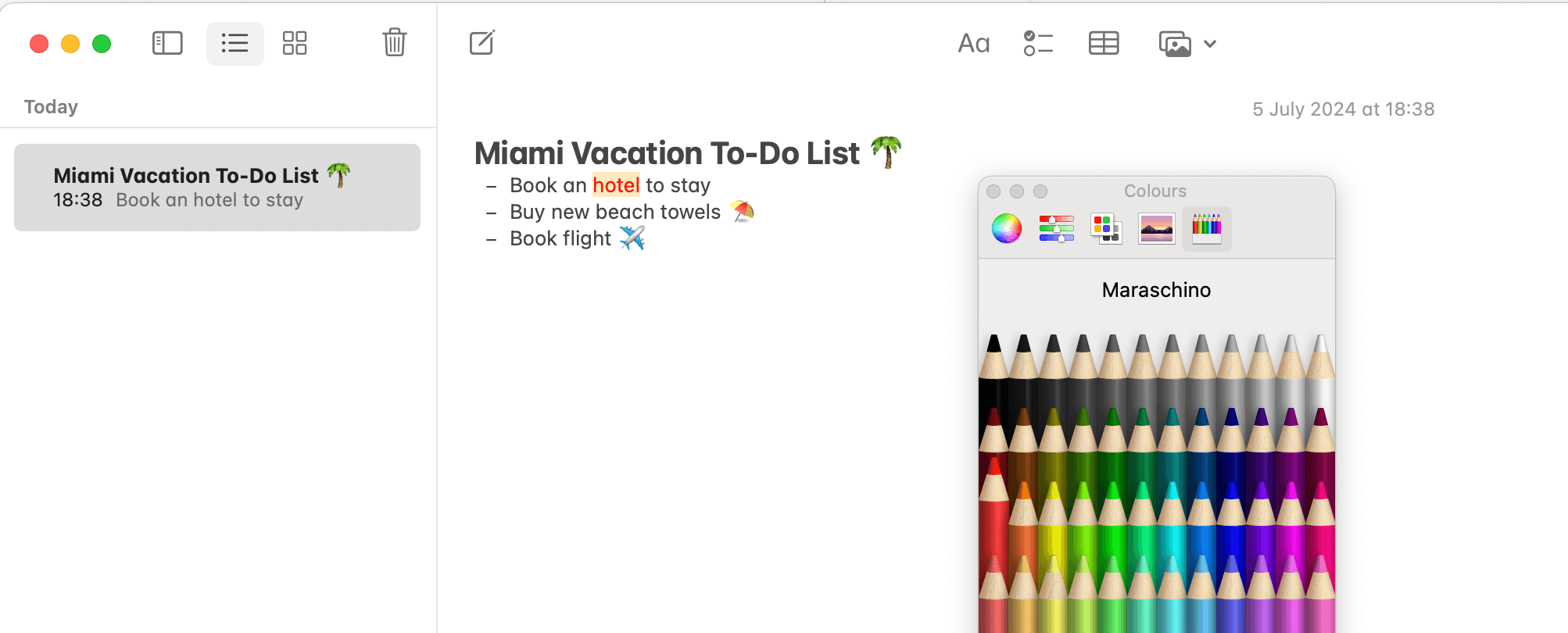
As an Apple user, you likely rely on Apple Notes to organize your thoughts, notes, and reminders. However, a common challenge is the lack of a direct highlighting feature. While Apple Notes doesn't currently support text highlighting natively, there are several creative workarounds to achieve a similar effect.
Can You Highlight Text in Apple Notes?
Not exactly, Apple Notes doesn’t offer direct text highlighting.
This can be frustrating for users who need to emphasize key information for study or quick reference. Fortunately, there are a few alternative methods to make your notes more visually distinct.
Workarounds to Highlight Text in Apple Notes
1. Change the Text Color
One way to simulate highlighting is by changing the text color. This won't give you the classic highlight look but will visually distinguish important text.
- Select the text you want to emphasize.
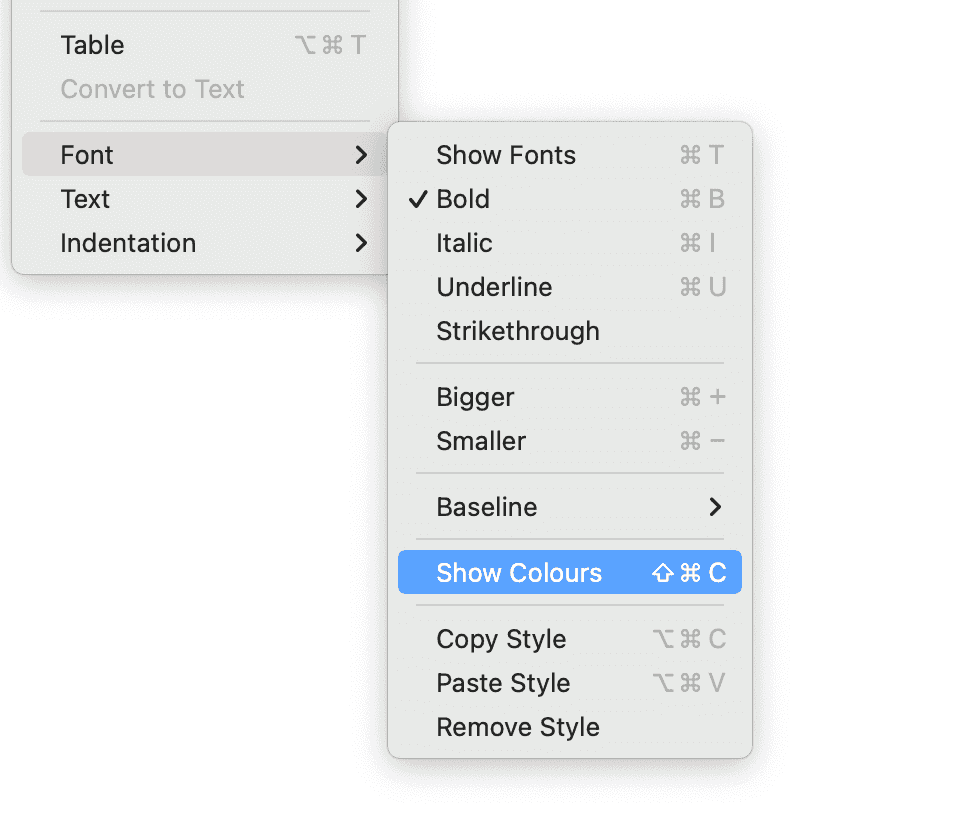
- Go to the Format menu at the top of your screen.
- Navigate to Fonts > Show Colors.
- Choose a color that makes your text stand out.
You can also use the keyboard shortcut Shift + ⌘ + C to quickly access the color picker.
2. Add Emojis and Symbols
Another method to highlight information is by adding emojis or symbols, which can serve as eye-catching markers.
- Position the cursor where you want to insert an emoji or symbol.
- Go to the Edit menu and select Emojis & Symbols to choose an icon.
You can also use a double Fn tap to quickly access the color picker.
👉 ✅ This method adds a fun and functional element to your notes, making important information stand out.
Update: Highlighting Feature in iOS 18 Beta 1
In iOS 18 Beta 1 and macOS Sequoia, the Notes app now includes a new highlighting tool in the text (Aa) menu. This feature simultaneously colors and highlights selected text in a lighter shade of the same color.
Consider Using a Different App
If the ability to highlight text is crucial for your note-taking, you might want to consider switching to a different app like Znote. Znote includes built-in support for highlighting:
- Surround the text with double equals signs (
==) to highlight. - Select the text and press
⌘ + Hfor a quick highlight.
Znote also supports local file management and other advanced features, making it a versatile alternative for those who need more from their note-taking app.